
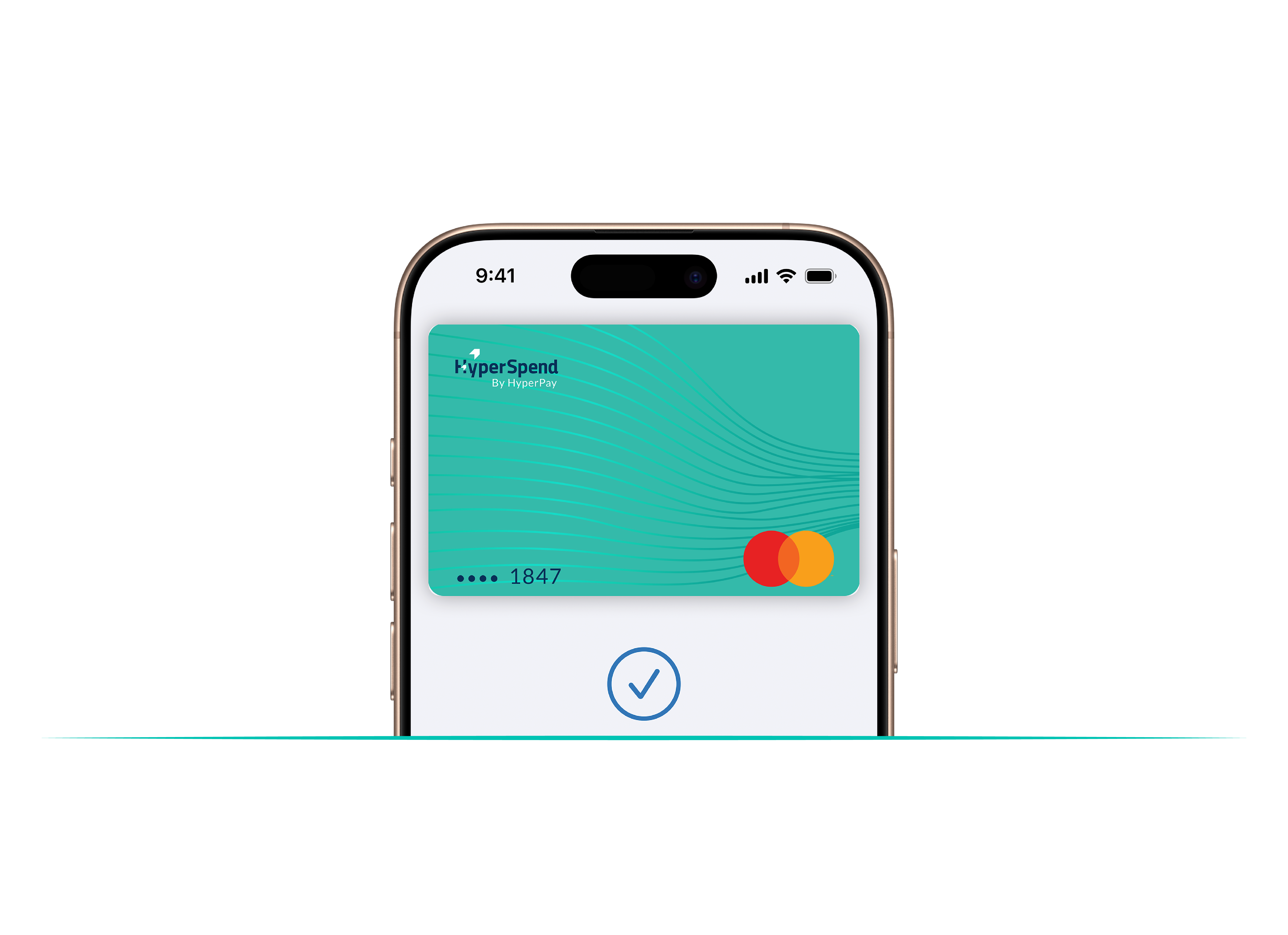
Apple Pay lets you make purchases with your HyperSpend card using any Apple device — just like you would with your physical card — in stores, online, and in apps.
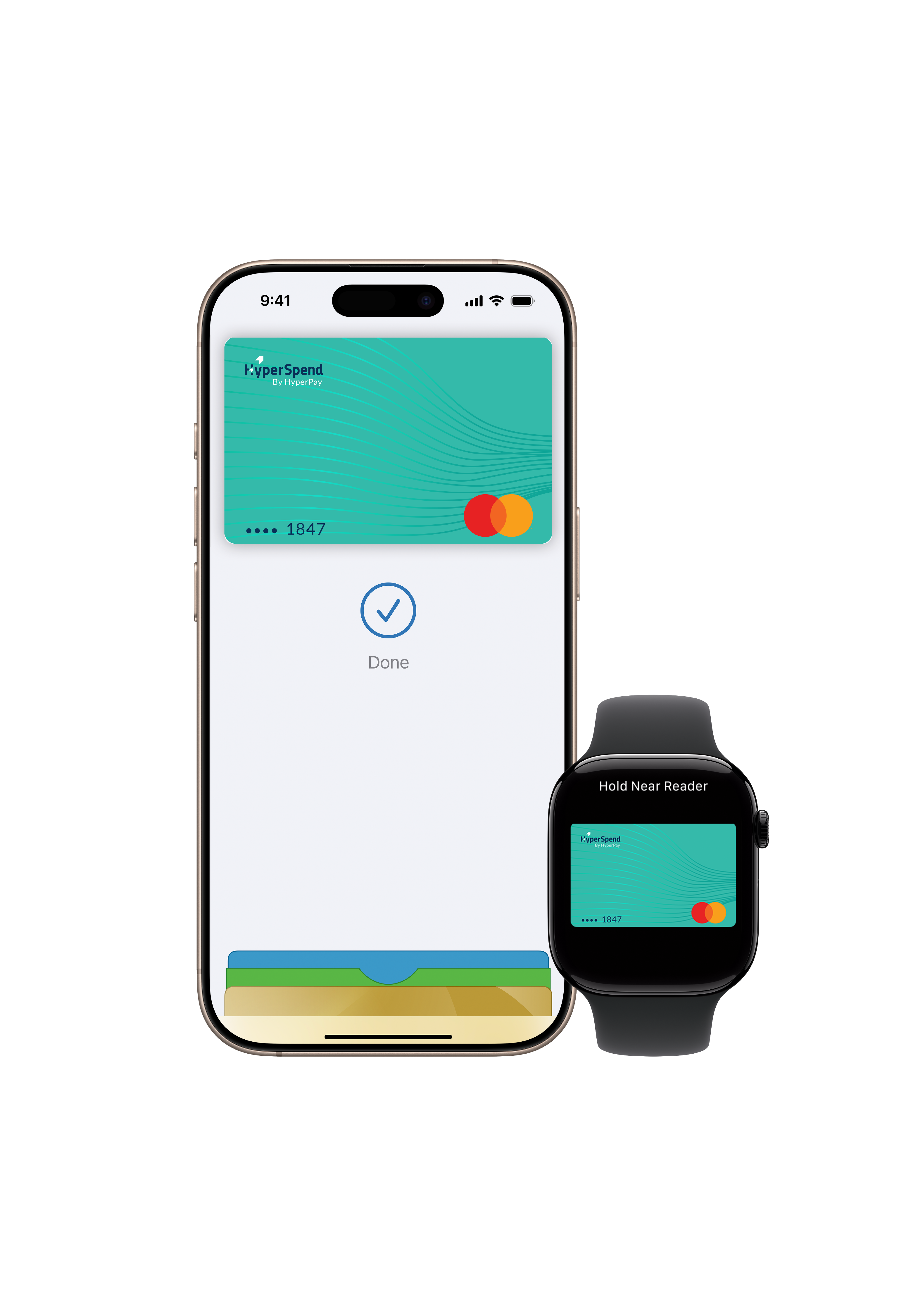
Apple Pay is built into iPhone, Apple Watch, Mac, iPad, and Apple Vision Pro. If you add your HyperSpend card to Apple Wallet on iPhone, you’ll have the option to add it to your other Apple devices in one easy step.
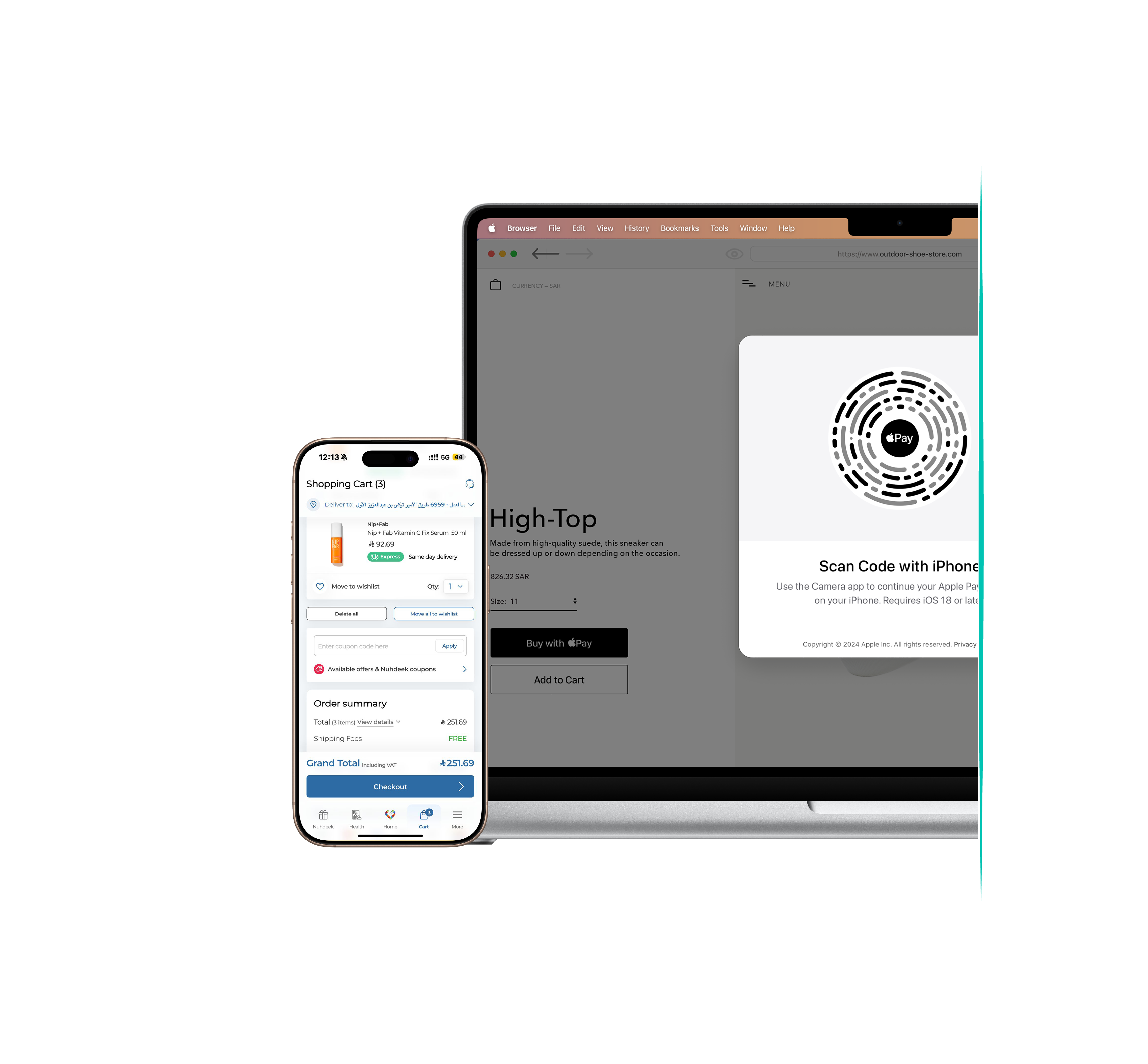
Apple Pay is accepted by millions of merchants around the world. Just look for the Apple Pay or the contactless payment symbol at checkout and pay with your HyperSpend card. To check out with Apple Pay if you’re on a computer but not using Safari or a Mac, click the Apple Pay button and scan the code that appears on screen with your iPhone.
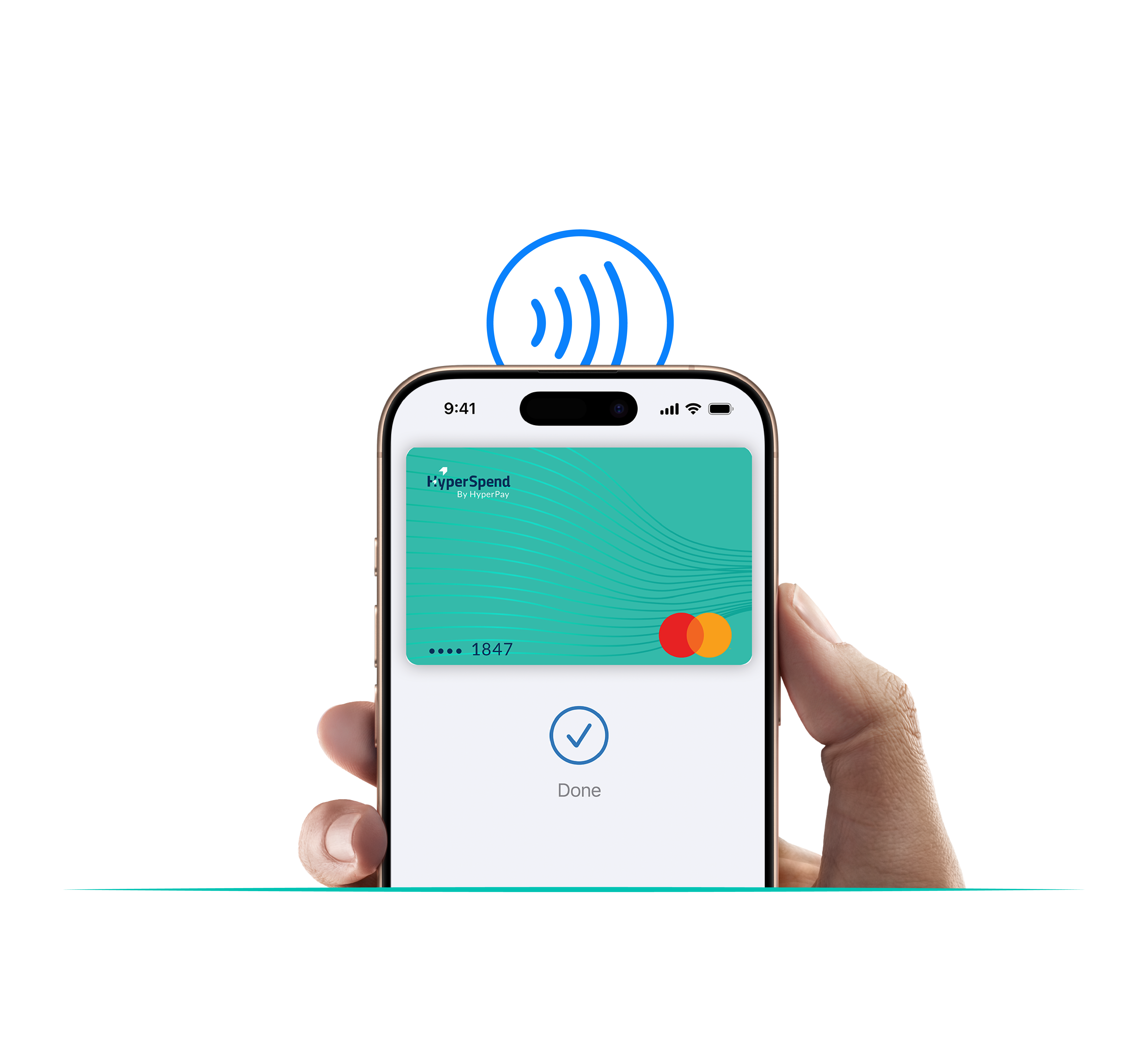
Apple Pay lets you skip entering your address or CVC code at checkout — so you can pay with your HyperSpend card with a simple glance or touch.
Every Apple Pay transaction requires authentication through your device’s built-in security features — including Face ID, Touch ID, and your passcode. Your debit or credit card number is never shared with merchants or stored on Apple servers. And if you misplace your iPhone, you can quickly mark it as lost on Find My to suspend your HyperSpend card.
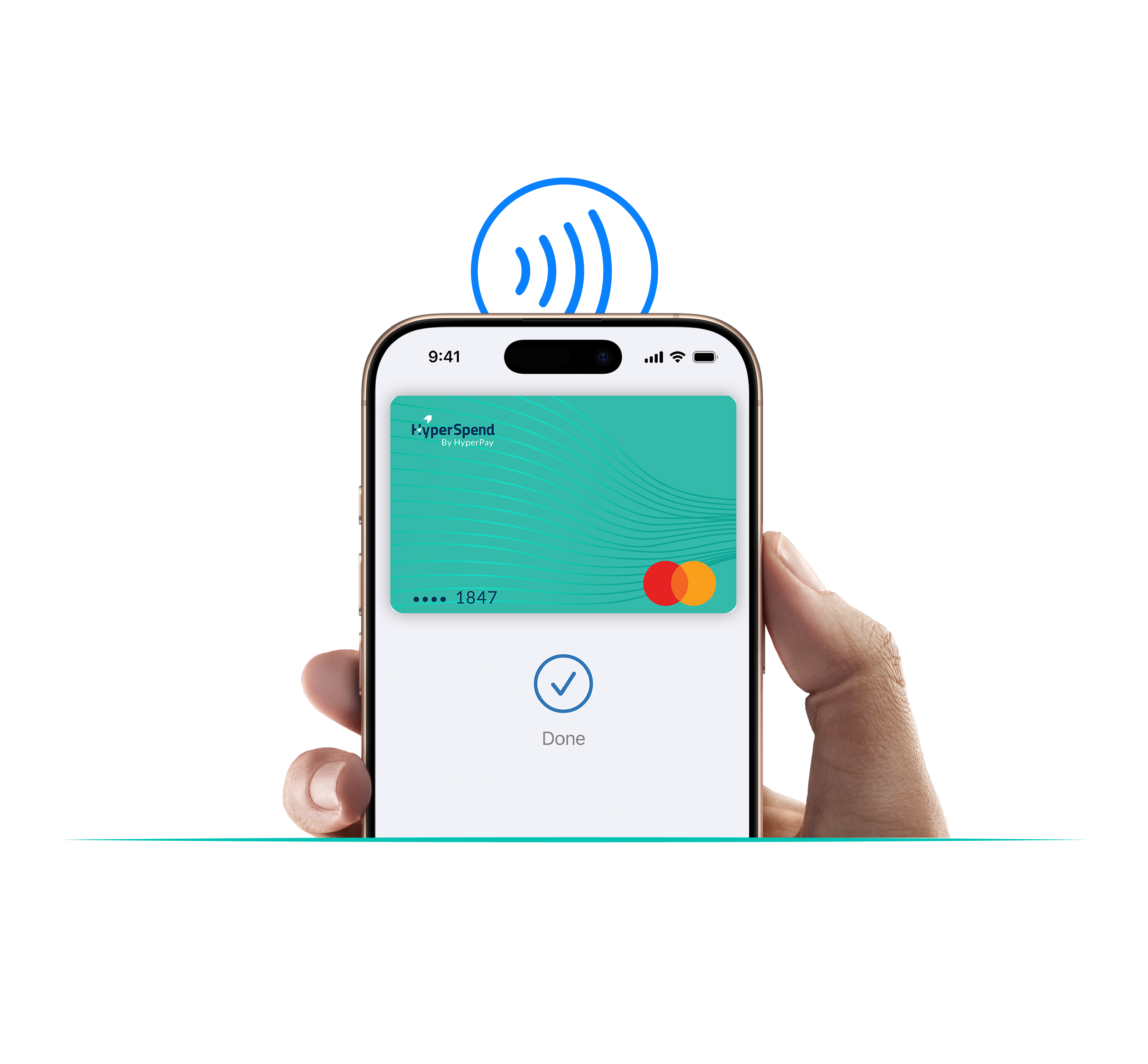
Open Apple Wallet on your iPhone.
Tap the Add (+) button, then tap Debit or Credit Card.
Follow the steps on the screen to add a new card.
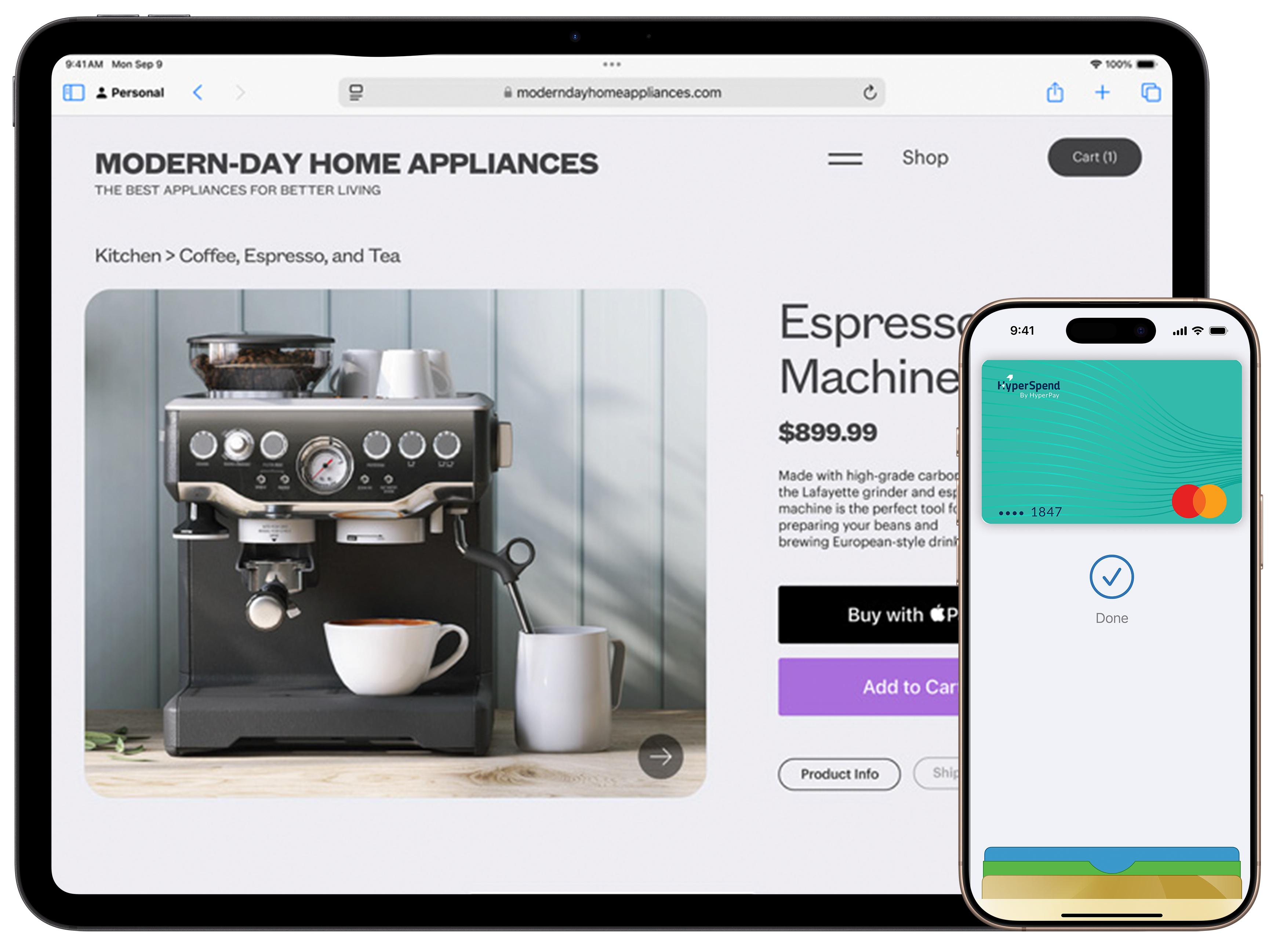
Adding your HyperSpend card to Apple Pay is quick and easy. Open the Wallet app on your iPhone, tap +, and follow the prompts to add your eligible HyperSpend card. You can also add your card directly from the HyperSpend app.
Apple Pay works on compatible iPhone, Apple Watch, iPad, and Mac devices.
For the latest list of supported devices, please visit Apple’s official Apple Pay support page.
You can use your HyperSpend card anywhere Apple Pay is accepted, including contactless payments in stores, online checkouts, and within supported mobile apps.
Yes. Apple Pay uses advanced security features to help protect every transaction.
Your card number is never shared with merchants. Instead, Apple Pay uses a unique encrypted device account number and authentication through Face ID, Touch ID, or your device passcode.
Yes. You can use your HyperSpend card with Apple Pay anywhere contactless payments are accepted, subject to your company’s spend policies and card settings.
If your device is lost or stolen, you can use Apple’s Find My service to locate, lock, or erase your device remotely.
Your HyperSpend card remains protected, and administrators can also freeze the card instantly from the HyperSpend platform if needed.